

Microsoft Extends Windows 10 Security Updates for Millions of PCs

Microsoft’s Windows 10 operating system despite having hundreds of millions of users, will no longer receive free security updates, feature updates, or technical support. As per my previous article, all support for Windows 10 was meant to end on the 14th of October leaving those machines exposed and without security updates. Microsoft has thrown a lifeline on providing updates to millions of windows 10 PC users though the Extended Security Updates (ESU) program. With this program, Microsoft effectively has extended the period of time that one can continue to receive updates for Windows 10 to October 2026 gaining a full year of updates from their previously announced cut-off date. However, take note this program is not entirely free, but can be legitimately be enrolled into without paying anything.
There are a few hoops to jump through to get this extension if you are a consumer and not a business, but it really does work and those users who were worried their machines would be exposed can now rest easy for another 12 months. What is this exactly? Well they call it the Extended Security Updates (ESU) program (https://learn.microsoft.com/en-us/windows/whats-new/extended-security-updates): providing a mechanism that extends security updates until October 2026. This program is free for users who sync their PC settings to the cloud via a Microsoft account using the new Windows Backup app. For those who don’t want to use the backup feature, the ESU program is available for a fee, or users can redeem 1,000 Microsoft Rewards points for it.
How to enrol into the ESU
For those that already sync their settings to the cloud via a Mirosoft account you should be covered already. In the background, Microsoft uses the Windows Backup app which utilizes OneDrive for storing backups, offering 5GB of free storage per user. The app allows you to back up your files (documents, pictures, etc.), app settings, and even your PC settings. In case of a system failure or data loss, the Windows Backup app enables you to easily restore your data and settings to a previous state. The biggest requirement for this to work is really having a Microsoft Account. Microsoft accounts are free to register and already millions of users already have Microsoft accounts making signing up for the ESU program quite easy and straight forward.
In the previous article about this, I mentioned that I have a Windows 10 machine that cannot be upgraded to windows 11. This machine fits exactly into what Microsoft requires for me to sign up into the ESU program. I’m already big on backups and this setting was already enabled on that machine.
How to Access and Use the Windows Backup App:
- Open Settings: Go to Settings > Accounts > Windows Backup.
- Sign in with a Microsoft Account: If you’re not already signed in, you’ll be prompted to do so.
- Choose what to back up: Select the folders, apps, settings, and credentials you want to include in your backup.
- Start the Backup: Initiate the backup process by selecting the “Backup” option.
How to enrol into the ESU
ESU is rolling out to all Windows 10 devices that are running Windows 10, version 22H2. To easily get your version of Windows, click on start and type winver and press enter or alternatively, press the windows key + R. In the popup box that comes out, type winver and press enter. The version of the operating system you have will be displayed.
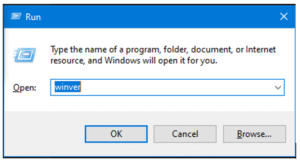
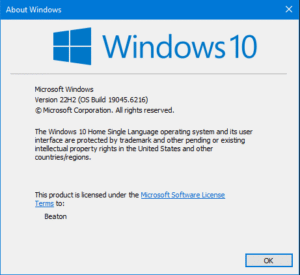
A colleague at work had been running Windows for about a month and never realised that it was Windows 11 and only confirmed when we discussed this method to get the current windows version. They were very afraid of upgrading to Windows 11 thinking of incompatibilities or having to setup their machine again. But unbeknown to them, windows update had quietly upgraded to Windows 11 and they never realised it. Thats how smooth these upgrades can run. But anyway, I digress.
To enroll your device in ESU:
Go to Settings > Update & Security >Windows Update. If your device meets the prerequisites, you’ll see a link to enroll in ESU.
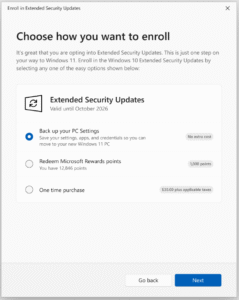
Once you select Enrol now you’ll start the ESU enrolment. If you are signed into Windows with a local account, you will be prompted to sign into your Microsoft account. If you are already backing up your PC Settings, you will see a prompt to enrol your device.
If you aren’t backing up your Windows settings, you can choose if you want to begin backing up your settings, redeem Rewards, or make a one-time purchase to enrol in ESU.
You can use your existing ESU license on up to 10 devices once you enrol in ESU. Just go to Settings > Update & Security >Windows Update and select Enrol now. This means with your one Microsoft with at least one PC backing up settings, you should be able to enable ESU on up to 10 Pcs.
On this Microsoft ESU website PAge, there are frequently asked questions which can assist one to get up and running.
Hopefully these links and instructions help you to get the extended support. I think signing in with your Microsoft account to get the extended support is a small price to pay to get the updates. If logging in with a Microsoft account is too much of a challenge, the next bext options would be to pay the USD$30 to get the support. The enrol page should assist you in buying this support. Personally, I would recommend everyone to take up this offer and activate this extended support on those windows 10 machines that cannot be upgraded to Windows 11 and also get their files backed up in the process.
Till next time, stay safe online.


