

The Easiest Way to Stay Safe Online: A Guide to Password Managers

Not sure if this is normal or not but I have 1240 usernames and passwords across my digital landscape including mobile, desktops, laptops and televisions. How do I know this? Well, I have a very good memory, and I can remember all my passwords and usernames registered and used across a span of almost 30 years in tech. Oh, and my passwords are usually over 24 characters each. Ok, obviously this is not true. The part about having a good memory😀 that is. As for the accounts, that very accurate. The reason I know this is because I use a Password manager to store my passwords and it keeps a count amongst other things that it does for me. It’s just not possible to remember that many passwords as a user no matter how good your memory is, so don’t try it. Hackers and malicious actors know this and will actively find means and ways of exploiting this knowledge of password reuse.
What is a password manager?
A password manager is a secure digital vault that stores all your logins behind one strong “master” password (or your fingerprint/face). It can create unique, hard-to-guess passwords for each account, remember them for you, and auto-fill them on websites and apps—so you don’t reuse or forget passwords. Everything inside is encrypted, meaning only you can unlock it. The password manager can be installed on all your mobile devices and be able to sync the details across the devices allowing seamless logins. For example, you can save a password on your laptop, and moments later you can login into the same service on your phone with the password manager automatically filling in the details for you.
Key benefits of Password Managers
Security: Password managers generate and store long, complex passwords that are nearly impossible for hackers to guess. This protects against credential stuffing (the process of using stolen passwords to try to log into other services) and brute-force attacks. Personally, I set my passwords to be 30 characters long and to use all the characters of the alphabet.
Convenience: They are very convenient, one no longer has to remember a dozen different passwords for different service. It simplifies the login process and saves time. It also makes setting up new accounts much faster and easier.
Peace of mind: The user can feel confident that their online accounts are secure without having to worry about remembering passwords or remembering kid’s birthdays or remembering which child’s name they used for a password.
Is it safe? Why can’t I just use the same password everywhere?
Some users tend to generate a password usually combining a child’s name or a birthdate or special number usually 2 or 4 characters. For example “tadiwa17“, “tatenda13” for kids named Tadiwa and Tatenda born in 2017 and 2013 (apologies to anyone with a child named Tadiwa or Tatenda, just making a point). Once they do this, they remember this password and use it everywhere, and I mean literally everywhere. When signing up for their email, they use that child-name and birthdate combination. When signing into their gym app, they use the same password. Banking app, same password. Signing into the Coles rewards or Flybys, same password. And things will look good and fine. Until one of these services are compromised and the passwords and username are all leaked online. In terms of security, this is a terrible idea.
Using the same password is very insecure; If a website or service you use (eg your gym app) suffers a data breach or is hacked, and your email address and password are stolen, hackers can then use automated tools to try that same email and password combination on hundreds of other popular sites, like banking portals, email services, social media, and e-commerce stores. This is known as credential stuffing. Because you used the same password, a breach on the gym app means that attackers now have access to your banking portal, or your ATO account. Worse, if they can get your email password, they can login into your email account and then do password resets for other services that you are signed into that use the same email address. In essence, using the same password is like using a single key to lock your front door, your car, your safe, your post office box and your office. If a thief gets a copy of that one key, they get access to everything without too much effort.
How can a password manager help me?
With a password manager, all you need to do is generate one complex master password and use that to sign into the password manager. The password manager becomes your vault to keep your all your passwords. This means you don’t have to remember any passwords as they all will be kept in the vault. And since they will be kept in the vault, the passwords will be different and can be made very complex, e.g. my passwords are generally 24 – 30 characters and are all autogenerated by the password manager. Passwords like this for all my services are very normal (these are not real, and don’t use them as your passwords please)
G7r$V9q!mP2@xT5#dL8%zN4&cH1*6?

F@3nZ!8uS#2kQ$9yT%5hL&1vC*7r0=

R2#pT9!wM4@cL7$zN1%vJ&6xD*8q5^
All these would be stored in the vault and remembered by the password manager. All I must remember is the Password manager master password. I can install the password manager on my phone and laptop and login. The password manager then takes over and identifies every time you try to login, and automatically fills in your passwords for you. When signing for the first time into an unknown service, the password manager will ask to save your password. Accept this and next time it will automatically fill this in for you.
Most phones have some form of a password manager that some people already use. For example if using an android device with a Google account, you’d find that your Google account has a password manager already built into it. You can make use of this or install a third-party app to do this. iPhone users store passwords using iCloud Keychain and the Passwords app, which securely saves and syncs passwords, passkeys, and other account information across their approved Apple devices. The end goal is the same, securely managing your online identities. To enable this, users must turn on iCloud Keychain in their device’s settings, allowing the system to automatically fill passwords and passkeys when signing in to apps and websites.
How do I get started
If not already using a password manager, I would recommend signing up for one immediately. Some of them are paid services and this is normal and worth it. To get started and start managing passwords securely you can do the following:
Sign up for a password manager
There are many password managers out there that one can choose from. I have already mentioned the password managers from Google (Google Password Manager) and Apple (Apple Passwords). These are usually ecosystem based and work well within their ecosystems. Other reputable third-party password managers include LastPass, 1Password, Dashlane, Keeper and Bitwarden. Go to their websites and sign up. Some will require you to install an app on your phone and some extensions in your browser on the desktop/laptop. Personally, I use LastPass and have been using it for more than 13 years now. However, I can also recommend 1Password (a feature-rich and intuitive option, often recommended for most users and families) and a special mention to Bitwarden which has a free forever option with unlimited devices making it an affordable option.
Disclaimer: I’m not affiliated to any of these services at all. Do your own research and confirm my recommendations.
Create a strong master password
This is the most important part about this process. The master password should be long and memorable but not tied to personal information as hackers can try to guess this based on information available about you online. For this one, I suggest using a unique phrase or a string of random words that would only make sense to you. The longer the better for this password. Also enable 2FA for accessing your vault from unknown devices providing an extra layer of security.
Start migrating your passwords
Once everything is setup and your account is ready to go, the next step is migrating your passwords to the new service. This process doesn’t have to be done all in one go, but I would recommend doing all your important apps, banking, social media, email etc. The process is simple. If using a computer, and you have installed a plugin for the password manager (the password during setup will take you through all this), then all you need to do is open your website/service and login. The password manager will offer to save the password for you. Accept the save and move onto the next website. Alternatively, if your passwords were short and easy to guess, initiate a password reset, and during this process, the password manager will offer to generate a strong password for you. Accept this proposal and it will generate and save this new strong password for you and pre-fill it next time your login. Take note, you don’t even have to remember these complex password it generates for you.
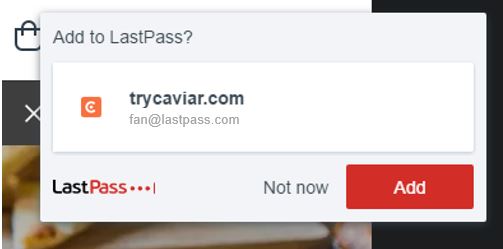
As time goes on, and you login into your other services, you will be migrating all your services to your password manager. All new services that you sign up for, will be automatically saved into the password manager.
Stay safe
This turned out longer than expected, but I felt this might be useful to someone. Till next time, stay safe and secure.


